


This is a follow-up to my previous post, Things that suck about macOS. I hinted in that post about ways to fix some of the woeful inadequacies of this OS, but this will be a more hands-on guide.
My perspective here is that of a Windows and KDE user, and many of these tweaks are geared toward making macOS feel more like that. So, depending on your preferences they might not all be for you.
Instructions based on macOS Tahoe 26.5.2. Settings may appear in different places in other versions, depending on how annoying Apple felt like being.
Apps to install
Taskbar
That’s literally the name of the app, and it does what the name suggests. The Windows taskbar is superior to the macOS dock, and this app does a pretty good job of replicating it. You even get a start menu!
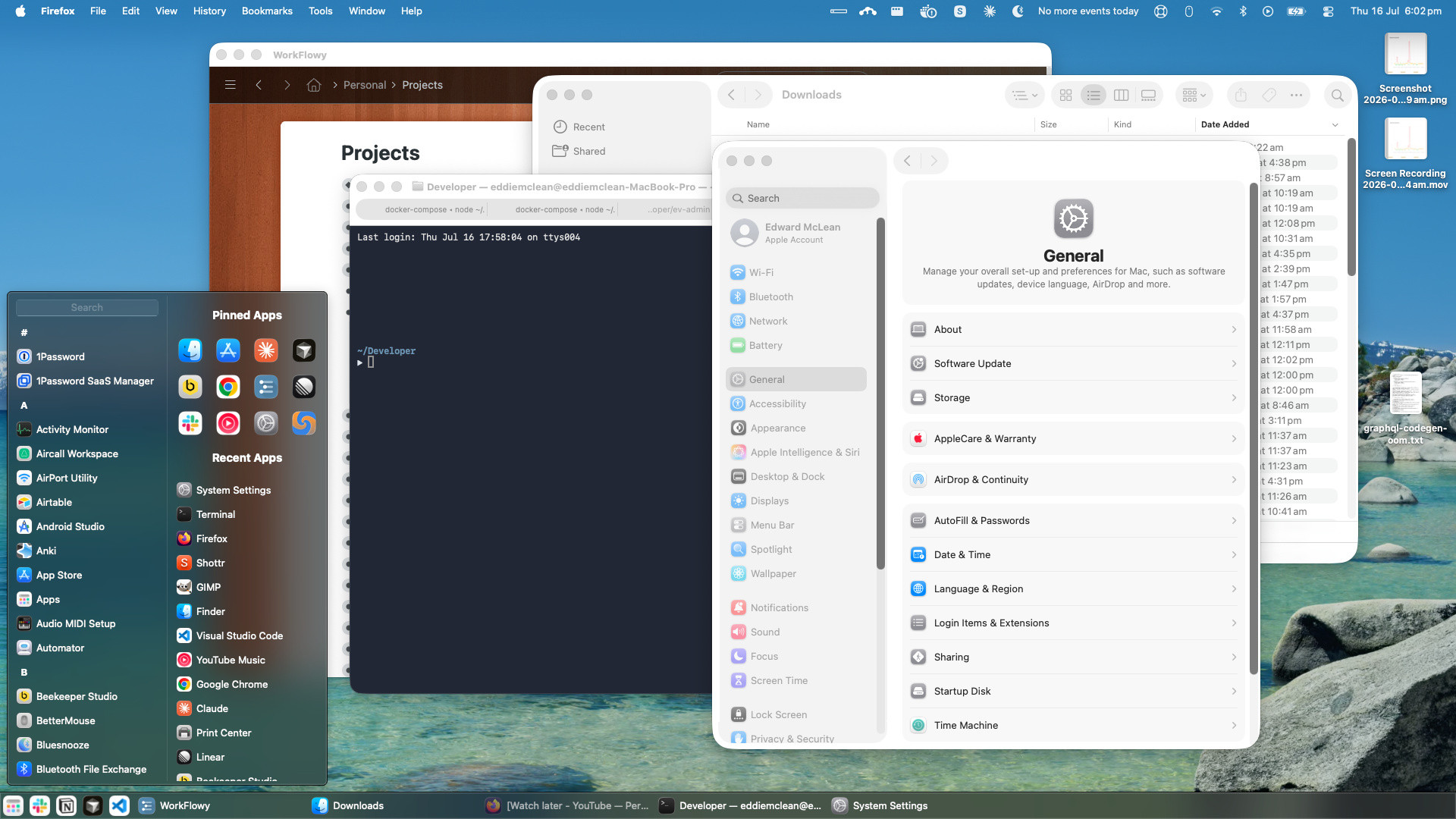
If you use this you’ll also need to reposition the dock so it doesn’t get in the way of the taskbar (see below).
Rectangle
Window snapping is another great feature of Windows and other good operating systems which is absent from macOS (unless you have the weird “Displays have separate spaces” setting enabled).
Rectangle is a very popular app which adds window snapping as well as a bunch of handy window-positioning shortcuts.
If you’re using Taskbar or similar, you’ll want to configure rectangle to leave some space for the taskbar below windows when they’re snapping fullscreen. You can do it via the command line:
defaults write com.knollsoft.Rectangle screenEdgeGapBottom -int 36

# Or if you have the paid version of Rectangle:
defaults write com.knollsoft.Hookshot screenEdgeGapBottom -int 36
Experiment to figure out the right value. 36 is what works for me.
BetterMouse
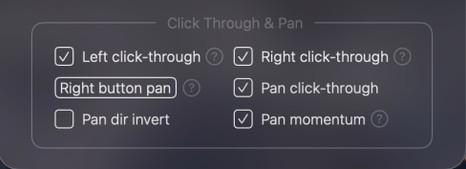
This app lets you make a lot of handy tweaks to mouse behaviour. Some of my favourites:
- Fix the scroll wheel. macOS applies terrible scroll acceleration behaviour wheel, making impossible to use. In BetterMouse you can make it linear as it should be.
- Adjust scrolling speed per app. In macOS it’s seemingly impossible to make the mouse wheel scroll at the same rate in all apps, but at least you can try.
- Fix click behaviour for unfocussed windows. When you click an unfocussed window in macOS, the first click only focusses the window. In a proper OS, clicking a thing clicks the thing, even if it’s in a window that’s not focussed yet. Fix this with the “click-through” options in the Buttons tab.
- Customise the behaviour of mouse buttons, globally or per-app.
Raycast
Raycast is like a command palette for the OS. It does a whole huge stack of things thanks to its vast array of plugins. But to be honest I pretty much exclusively use it for three things:
- Launching apps
- Clipboard history
- Emoji picker
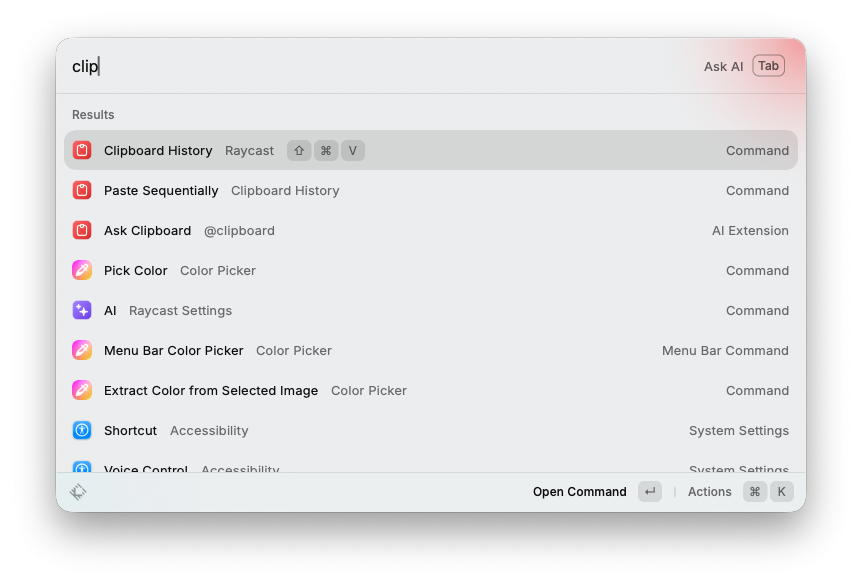
It’s hard to believe that the flagship OS of a $4.6 trillion company doesn’t have clipboard history built in, but here we are. (macOS does have a built-in emoji picker, but damned if I can remember how to open it when I need it.)
Bluesnooze
Here’s an insane fact: When your Macbook is ostensibly asleep, it will still connect to Bluetooth headphones. To what end? Who the hell knows, but it sure is annoying when I’m leaving the office and I turn on my headphones, and instead of connecting to my phone they connect to the laptop in my backpack.
Bluesnooze has you covered: it turns off Bluetooth when the laptop is asleep-but-not-really-asleep.
noTunes
Speaking of baffling behaviour: Apple Music has a habit of opening itself when you connect headphones, as if the only reason you could possibly be connecting them is to listen to Apple Music.
Use noTunes to stop that behaviour or have it open something else instead.
Shottr
This one’s not as important, but the screenshotting features in macOS are a bit basic, and Shottr is a nice alternative.
Finder settings
Finder’s behaviour is stupid by default. Here’s how to improve it.
Folder view
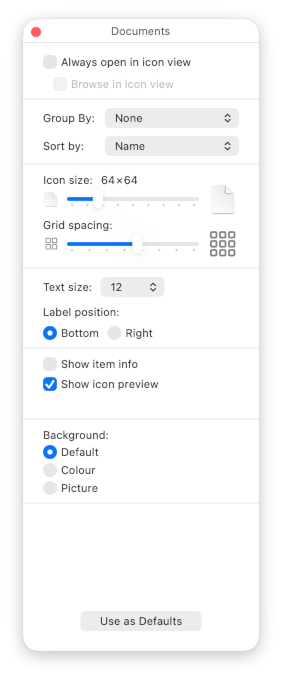
- Right-click in any folder and select Show View Options
- Group by → Select None
- Sort by → Select Name (this also causes the icons to align to a grid)
- At the bottom, click Use as Defaults
File extensions
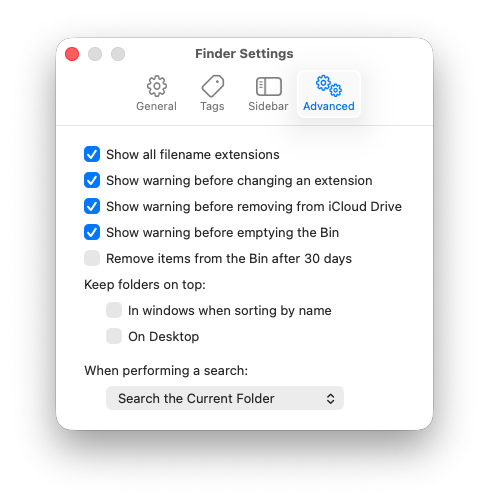
Hiding file extensions is stupid (Windows does it by default too). The extension is part of the filename and there’s no reason to hide it. In the menu bar, go to Finder → Settings… → Advanced → Select Show all filename extensions.
System Settings
Hide the dock
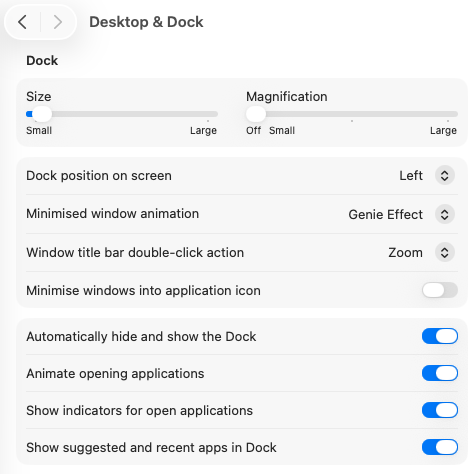
If you’re using Taskbar, you’ll want to get rid of the dock. There’s no way to remove it completely, but you can get it out of the way.
Go to Desktop & Dock, then:
- Toggle on Automatically hide and show the Dock
- Set Dock position on screen to Left
- Turn Size down. I put it not quite all the way down, so if I do need to use it for some reason I can still see the icons.
PC-like modifier keys
If you’re a PC user, you’re probably used to doing certain things with the Ctrl key: copy/paste, undo, etc. On a Mac these are generally done with the Cmd key, which is in a different position, interfering with muscle memory. Likewise, the Alt key on a PC generally corresponds to Option on a Mac.
To make life easier, re-map the keys to work with your muscle memory instead of against it, by putting the (left) modifiers in the order Cmd, Ctrl, Opt, rather than the default Ctrl, Opt, Cmd.
In System Settings go to Keyboard → Keyboard Shortcuts… → Modifier Keys, and set up these mappings:
- For built-in or external Mac keyboard:
- Ctrl → Cmd
- Option → Ctrl
- Cmd → Option
- For external PC keyboard:
- Ctrl → Cmd
- Cmd → Ctrl
To complete the look you can buy a set of keycap stickers like these, and re-label the laptop keys with their new functions. You’ll just need to trim down the Cmd key sticker, since it will be going on a smaller key than it’s designed for.
Always show scroll bars
Scroll bars are an excellent UI affordance, indicating four useful pieces of information:
- That an area is scrollable
- In which direction(s)
- Roughly how much content there is, relative to the viewport
- Your current position within that area
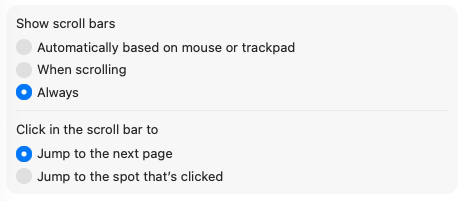
The marginalisation and auto-hiding of scroll bars in modern interfaces is a travesty. Correct it by going to Appearance → Show scroll bars → Select Always.
Trackpad behaviour
There are a few things to tweak here depending on your preferences. Go to Trackpad, then:
- Point & Click → Enable Tap to click. This matches the behaviour of most PC laptops I’ve used.
- More Gestures → Disable Notification Centre. When this is on I often accidentally open the Notification Centre while I’m trying to scroll horizontally.
- More Gestures → Disable Swipe between pages. This would cause unintended back/forward navigations in the browser when I try to scroll horizontally.
Fix shortcuts
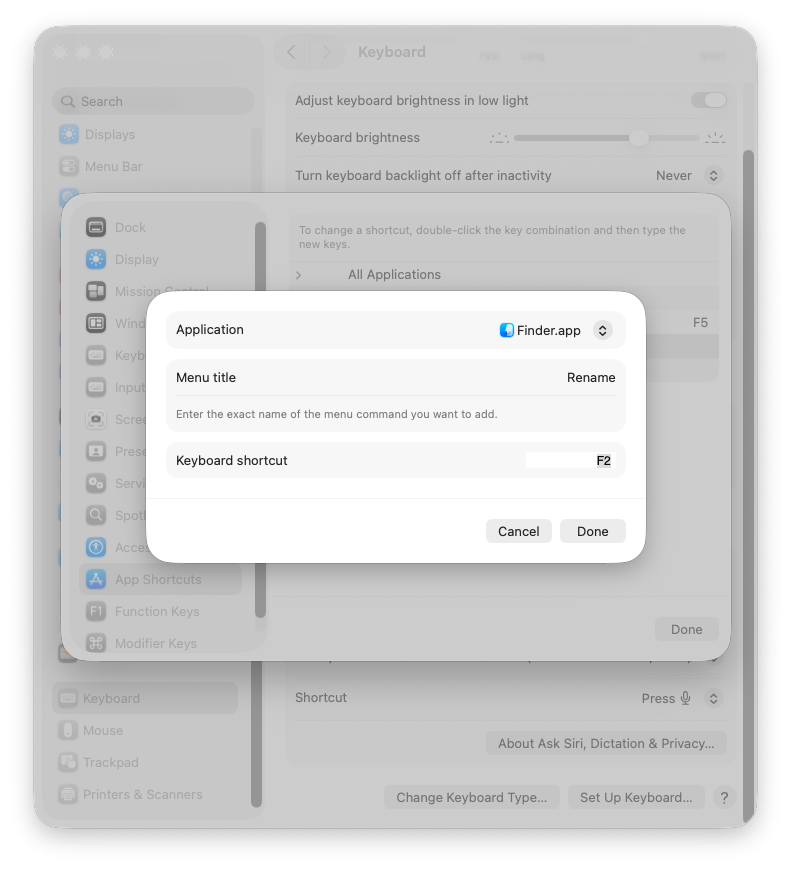
This depends on what shortcuts you commonly use. For me it’s F5 to reload in Chrome, and F2 to rename files.
Go to Keyboard → Keyboard Shortcuts… → App Shortcuts. The way you configure each shortcut is a bit weird:
First, find the menu item:
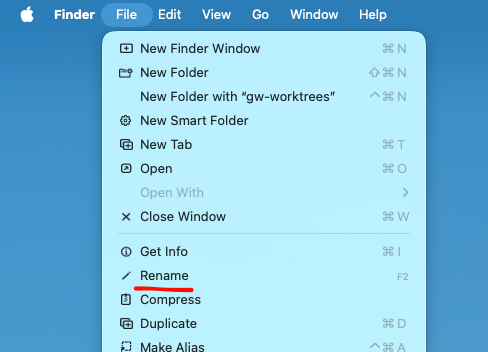
Then under App Shortcuts, configure it by selecting the app and entering the exact menu item name and the shortcut:
Disable auto“correct”
If you’re a semi-competent typist then this feature annoys more than it helps, by “correcting” your slang or jargon that’s not in the dictionary into different words that you didn’t mean. Occasional typos are preferable to that.
Keyboard → Text Input → Edit… → Turn off Correct spelling automatically.
Disable full stop on double space
While you’re there, you might want to also turn off Add full stop with double-space. That’s just some annoying bullshit.
Final thoughts
How did an OS with such so many UX problems become so popular? I suspect that, like Windows, it used to be better and has degraded over time.
There’s a kind of disease in the tech industry, where companies think they need to keep fiddling with products’ interfaces to keep them “fresh”, without any coherent UX goal. Sometimes this is for the better, but nearly always it makes things worse. Even Apple, the supposedly “user friendly” company, isn’t immune to this.
Meanwhile, the software industry has moved to using Macbooks almost exclusively for developer machines. Why? I suppose the alternatives seemed worse. Windows sucks, and desktop Linux has historically been very finnicky. macOS has bad UX, but at least it’s stable and Unix-like. And I can’t deny that a Macbook is a damn fine piece of hardware.
Getting semi-comfortable with macOS is a real slog, but with enough effort it can be done. I hope this guide makes it a bit easier for you. ◼